The local AI voice input Mac app is complete.
I had tried something like this before, but back then I gave up partway through.
This time I rebuilt it from scratch and finally got it into a form that I’m satisfied with myself.
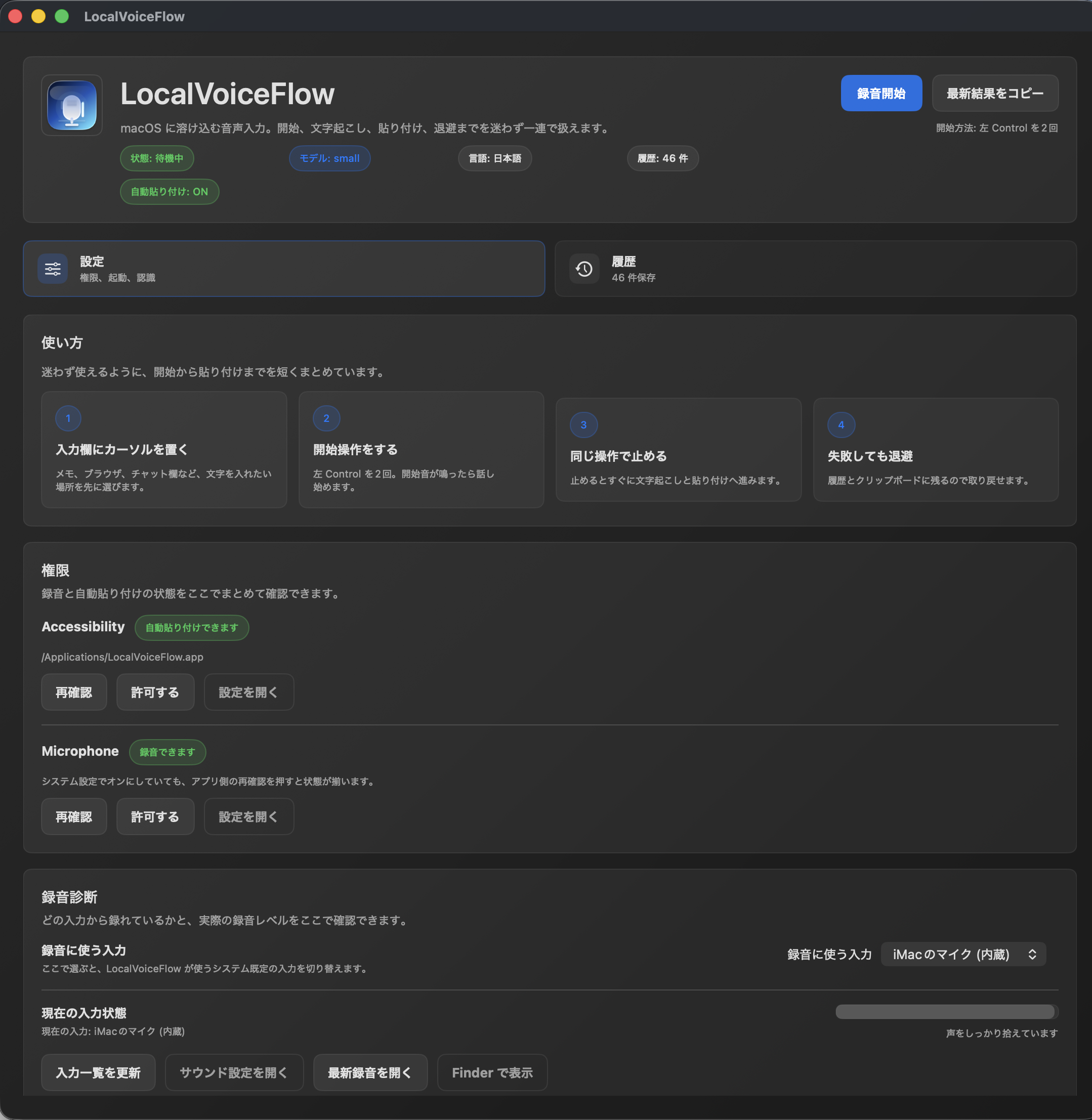
The app is called LocalVoiceFlow.
It stays in the macOS menu bar, starts recording with a shortcut key, transcribes locally with AI, and even automatically pastes the text back into the original input field—a voice input app that handles the whole flow.
What made me especially happy this time was not just that I was able to build it, but that when I actually used it, I sometimes felt it was more accurate than the monthly paid app I had been using, depending on the situation.
I had previously used a paid service costing around 2,000 yen per month, but by building this app myself, I was able to create an environment that lets me keep using a similar voice input setup for almost free from now on.
What is LocalVoiceFlow?
LocalVoiceFlow is a voice input app that lives in the macOS menu bar, starts recording with any key operation you like, performs local transcription with WhisperKit, and then automatically returns to and pastes into the original input field.
Another big feature is that even if pasting fails, the content is automatically backed up to history and the clipboard, making it less likely that what you said will be lost.
This app is a local AI voice input app that runs on Mac.
For speech recognition, it uses OpenAI Whisper-based models, and the basic conversion process is completed entirely on the device.
macOS’s built-in voice input is a convenient standard feature that lets you input speech directly at the cursor.
LocalVoiceFlow, on the other hand, is designed not only to transcribe with local AI, but also to make the output easier to refine afterward—by turning spoken language into readable text, reducing unnecessary phrasing, and making it easier to correct proper nouns and inconsistent notation. That focus on “post-input polishability” is one of its defining features.
Rather than simply replacing the built-in feature, this app was built with the goal of creating a voice input environment optimized for my own workflow.
Why I decided to build it
Over the years, I’ve used several paid voice input apps with similar functionality.
In fact, some of them were quite polished and felt very convenient.
At the same time, though, I also had thoughts like:
- There’s a monthly fee
- It’s hard to fine-tune the app to exactly the behavior I need
- Some of them aren’t fully local
- I’d like to tweak it even more to suit my preferences
That was part of why I decided to try building one myself and shape a voice input app around a local AI approach.
As a result, it became something that could be finely optimized for the way I use it, and in some situations it actually felt easier to use and more accurate than the paid service I had been using before.
What LocalVoiceFlow can do
1. Always available in the menu bar
LocalVoiceFlow stays in the macOS menu bar.
You can open it instantly from the icon in the top right, and start/stop recording or open the settings screen from the menu bar.
It’s designed for regular use, with as few steps as possible.
2. Start and stop recording with a shortcut key
You can start recording with a shortcut key you choose in advance, and stop it with the same action again.
For example, you can assign something like pressing the Control key twice, so you can use it right from the keyboard.
Press the shortcut you set to start recording, press it again to stop, and the transcription result is automatically pasted, so you can use it without reaching for the mouse.
3. Transcription with local AI
Transcription is handled locally with WhisperKit.
You can switch between tiny / base / small models, and it’s tuned for a good balance for Japanese on an M3 / 8GB Mac.
4. Easier to clean up spoken language
It’s not just transcription; it also makes it easy to add things like:
- Filler removal
- Corrections using a replacement dictionary
- Standardizing notation
- Proper noun correction
.
With voice input, what matters isn’t only whether it can recognize speech, but whether the result is usable as-is afterward.
LocalVoiceFlow is designed with that in mind.
5. Automatically return to and paste into the original input field
After recording, it returns to the app where you were typing and automatically pastes the result.
I wanted it to fit naturally into everyday workflows like notes, browsers, and chat fields, so this was something I put a lot of emphasis on.
6. Even if pasting fails, the content isn’t lost
Automatic pasting is convenient, but depending on the environment, it can fail.
So I made sure the result is also backed up to history and the clipboard, creating a design where what you said is less likely to disappear.
Main features
LocalVoiceFlow includes all the basic features you need to make voice input as smooth as possible.
- Menu bar resident
It stays in the macOS menu bar so you can call it up whenever you need it. - Start/stop recording with a shortcut key
Use a preset key operation to start recording, and the same operation to stop. Because it’s centered around the keyboard, it’s less likely to interrupt your workflow. - Local AI transcription
Supports local transcription using WhisperKit, so audio can be converted to text on the device. - Correction features that make spoken language easier to polish
It’s designed not only to use raw transcription results, but also to make it easy to clean up unnecessary phrasing and correct notation. - Automatic paste into the original input field
It returns to the app you were using before recording and reflects the result directly in the input field. It’s structured to be easy to use in everyday work like notes, browsers, and chats. - History saving
Transcription results can be kept in history, so you can look back on them later or reuse them as needed. - Backup on paste failure
If automatic pasting doesn’t work, there’s a safeguard so the result is less likely to be lost. - Permission and recording state checks
It makes it easier to check microphone and input-assistance status, as well as recording state, so causes are easier to track down when problems occur. - UI focused on ease of use
Since it’s meant for daily use, the UI is designed to make status easy to see and the needed actions easy to reach.
What I liked about this app
After actually building it this time, the three biggest benefits were:
1. Almost no recurring monthly cost
I had been using a paid service costing around 2,000 yen per month, so over a year it added up to a fair amount.
By building something local and tailored to myself, I now have an environment I can keep using for almost free, which is a big win.
2. It can be optimized for the way I use it
Off-the-shelf products are highly polished, but they’re inevitably designed for everyone.
With a custom build, I can tailor it for:
- the key operations I use most
- the way I speak
- proper nouns
- how the text is cleaned up
- the look of the UI
.
3. The accuracy was better than I expected
This was the part that made me happiest.
Honestly, at first I thought, “If it works well enough locally, that’s good enough.”
But when I actually used it, there were situations where it felt more accurate than the paid app I had been using, which gave me a lot of confidence.
At least for my own use case, I’m very satisfied so far.
I think this is especially a good fit for people like these
LocalVoiceFlow is a particularly good match for people like:
- People who want more comfortable voice input on Mac
- People who want to make use of local AI
- People who want to reduce monthly subscription costs
- People who want to write blogs or notes quickly by voice
- People who want to build an input environment optimized just for themselves
- People who want results that are a little easier to clean up than standard voice input
Looking ahead
Going forward, I’m considering adding more features if needed.
That said, even in the form I’ve built now, it’s already quite practical.
Personally, it was a big realization to see just how much can be done with local AI.
I had given up halfway through before, so being able to shape it into something real this time makes me genuinely happy.
Summary
LocalVoiceFlow is a local AI voice input app for Mac.
It starts recording with a shortcut key, performs local transcription with WhisperKit, applies corrections, and then automatically pastes the result back into the original input field.
And even if pasting fails, the content is backed up to history and the clipboard, so what you said is less likely to be lost.
While using monthly paid services until now, realizing that “I can actually build something like this myself” was a huge moment for me.
And in practice, not only can I operate it at almost no cost, but in some situations it even feels more accurate than the paid apps I had been using before.
I feel that the possibilities of Mac apps powered by local AI are bigger than I had expected.
Addendum: Adding OpenAI support and second-stage AI correction improved the accuracy quite a bit
At first, I built this app so it could be used as locally as possible, but after using it for a while, I found that with long text and complex context, there were still cases where misrecognitions and unnatural phrasing remained.
So this time, I added a high-accuracy transcription feature using OpenAI, and also made it possible to use a “second-stage AI correction” process that reviews and polishes the text once more afterward.
With this, issues that simple speech recognition couldn’t fully fix—such as misrecognitions that don’t fit the context, unnatural English insertions, and irregular punctuation—now get smoothed out much more naturally than before.
What’s especially significant is that it’s now possible to add a flow that doesn’t just
“transcribe the text,” but instead
looks at the entire context and corrects it faithfully while changing the meaning as little as possible.
I feel that this has greatly improved practicality.
Of course, using OpenAI does incur API fees.
However, this feature is optionally switchable on and off, and you can also choose the model used for the final polishing step.
You can configure it for higher quality, or choose a lighter model if you want to keep costs down.
In other words, you can tune it to fit either accuracy-first or cost-first preferences.
This app has evolved into something that retains the benefits of being usable mainly locally, while also being able to improve accuracy further with OpenAI when needed.
As I’ve continued using it and fixing issues one by one, I think it has become a much more practical app than before.
Going forward, I plan to keep improving any parts that stand out while using it.
Rather than just a prototype, I want to gradually raise its quality as a voice input app that can truly be used in everyday life.
Gentle Next Step
読み終えた余韻の先で、 次の一歩を静かにつなぐ。
お問い合わせ、サービス案内、資料請求、無料相談など、記事の流れを崩さず自然に次の行動へつなげるためのCTAです。画像・文言・色はテーマ設定から自由に変更できます。

Related Articles



Conversation
Be the First Voice
読んだだけで終わらせないでください。
感じたことを、コメント・発信・メモなど、何かの形で外に出してみてください。
反応した瞬間から、変化は始まります。
この場所に、最初の感想や気づきをそっと残せます。