There are surprisingly many situations in WordPress where you want a URL that returns only “raw HTML” exactly as-is, without adding any theme or decoration.
- For validating tags in external services,to return the specified HTML exactly as-is
- for ads, tracking, forms, and more,it can be a problem if extra HTML such as headers and footers gets mixed in
- At a specific URL,completely free HTML (or minimal HTML) you want to output
But if you create it as a normal page or post, the theme template inevitably gets involved (the head/body structure and CSS/JS), and it may not become “pure HTML.”
So this time, the “Raw HTML Dedicated URL Generation Snippet (Code Snippets import version)” is
a feature-addition snippet that creates a dedicated URL on WordPress for returning Raw HTML,ignores the theme and displays HTML as-isso you can do that.
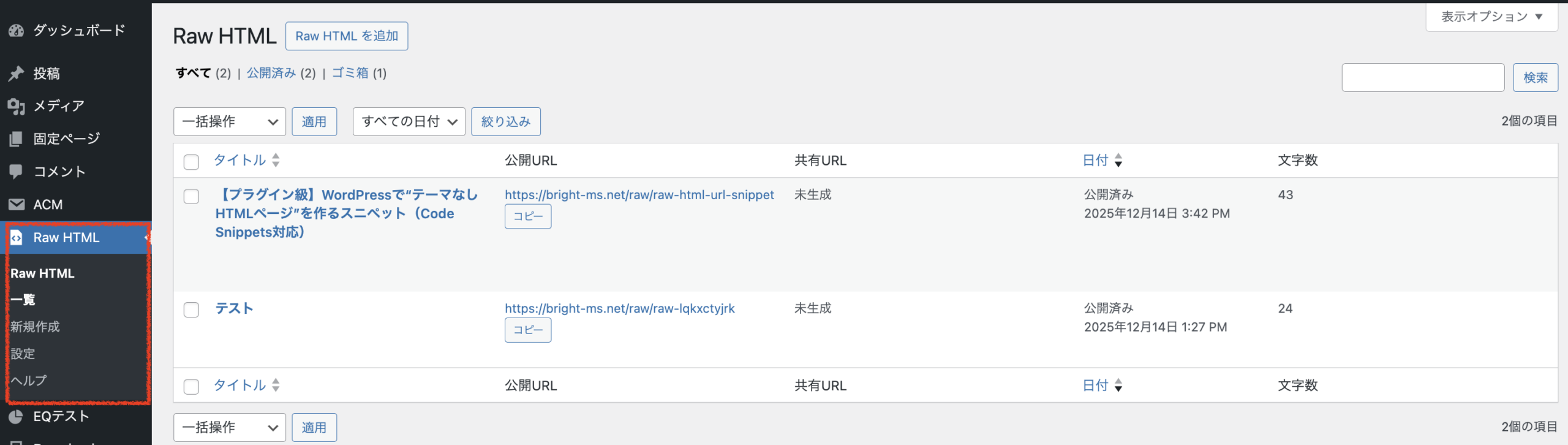
If you paste the HTML as-is, …
Example:https://bright-ms.net/raw/raw-html-url-snippet
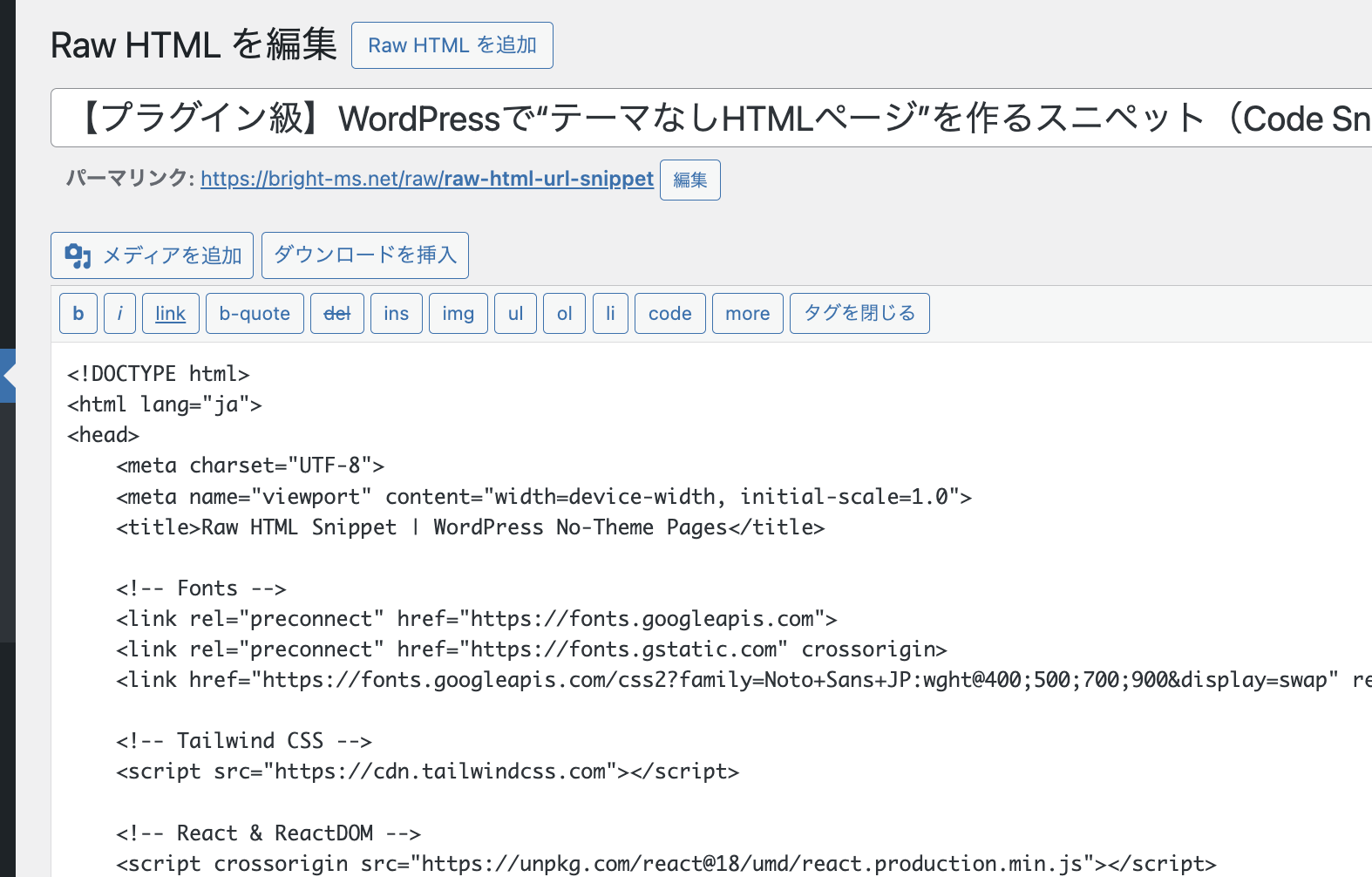
This is not a “ZIP plugin” (but it feels like one)
This product is not a WordPress plugin installed from a ZIP file;it is a snippet to import and use in Code Snippets (free plugin).
That said, the usage feels almost the same as a plugin,
- import and add
- and you can switch it on/off
.
What it can do
- Generate a dedicated URL for Raw HTMLand display HTML there exactly as-is
Example:https://bright-ms.net/raw/raw-html-url-snippet - It is less affected by how the WordPress theme is displayed (headers, footers, etc.),so you can return it without extra decoration
- To use it only when needed,you can turn the snippet on/off.
*Please use it according to the included instructions (README, etc.) for the specific output rules such as URL format, editing method, and support for multiple pages.
Recommended for these people
- You were told by an external service to “return the specified HTML” for validation
- The theme or page builder gets in the way, so you cannot output the intended HTML
- Agencies and maintenance teams that frequently need “this URL must be handled separately” for client projects
- You want a lightweight, targeted solutionwithout installing a heavy all-in-one pluginRecommended not to use if
You need strict control over the public scope of HTML/scripts (e.g. members-only access is required)
- The site has high security requirements and operational rules are not yet in place
- You want to apply changes immediately in production without testing (staging is recommended)
- What you need to install
WordPress (recommended: a relatively recent version)
- PHP (recommended: a relatively recent version)
- Code Snippets (free plugin)
- How to use it (import steps)
The
you can download after payment.code-snippets.json and use it by importing it into Code Snippets.
- In the WordPress admin screen, install and activate the plugin “Code Snippets” (free)
- The left menu in the admin screen will show “Snippets”
- Click “Snippets” → “Import”
- On the import screen, (follow the displayed instructions)Import format/options
- select
.code-snippets.jsonSelect the purchased - and upload it → importEnable (turn ON) the added snippet
- Follow the instructions provided by the snippet (README, etc.) to use the dedicated URL
Because you can turn it ON/OFF the same way you would add a plugin, it is easy to roll back if something goes wrong. That is a major benefit.
Basic troubleshooting when something goes wrong (start here)
- First, turn the relevant snippet OFF (disable it)
- If the changes do not appear,check cache clearing (cache plugins/CDN/browser)
- If you suspect a conflict, temporarily disable other plugins to isolate the issue (be careful on production)
Before applying to production, we recommend checking in a backup or staging environment.
About support
- Support is email only (no phone support)
- When contacting us, it helps to include the following
- WordPress version / PHP version
- Theme name in use
- List of active plugins
- Screenshots of the issue and any error messages (if available)
Frequently Asked Questions (FAQ)
Q. Is Code Snippets paid?
A. It can be used for free (in many cases, the necessary features are covered by the free plan).
Q. Can I install it as a ZIP plugin?
A. No. This product is in the format of importing it into Code Snippets.
Q. Can I revert it if I stop using it?
A. If you turn the snippet OFF, you can stop its effect (if there are additional settings depending on the specification, please follow the README).
Q. Will it work if I change the theme?
A. Since it is designed for the purpose of “returning HTML while ignoring the theme,” it is intended to avoid theme dependency. However, environment differences exist, so testing is recommended first.
Q. Is it secure?
A. Because it literally outputs HTML as-is, you need to be careful about the public scope and content. Avoid exposing confidential information or unnecessary scripts.
What happens after purchase
- Payment
- Download
- Import into Code Snippets
- Turn ON and start using
モニター価格500 円(税込)
Raw HTML専用URL生成スニペット(Code Snippetsインポート版)|テーマ無視でHTMLをそのまま表示
記事URL
https://bright-ms.net/archives/59902
LP
https://bright-ms.net/raw/raw-html-url-snippet
Finally
“The theme or WordPress output gets in the way and I can’t return the HTML I need” is a surprisingly time-consuming problem.
This snippet was prepared tosolve that lightly and precisely.
Install it quickly when needed, and return it smoothly through a dedicated URL.
I hope you can use it for that kind of “reduce the manual effort in real work” purpose.
Update history (Changelog)
v1.3.0 (2026-01-03)
- Added a “Include in Latest Posts” option in the admin screen under “Settings”
Just by switching ON/OFF, Raw HTML (CPT:oai_rawhtml) can now be mixed into the “latest posts” area. - Now supports mixing
oai_rawhtmlinto the latest posts (top page / main loop of post archives)
It blends naturally into the theme’s normal post list display, so it looks natural on many themes including SWELL. - Now supports mixing
oai_rawhtmlinto WordPress’s standard “Recent Posts” widget
Raw HTML can now also be handled in “latest” displays such as sidebars. - Added the extension filter
oai_rawhtml_recent_post_types(optional)
So you can adjust settings for other post types without adding code.
v1.2.0 (2025-12-14)
- Added an “editing bar (logged-in users only)” at the top of Raw HTML pages
The moment you open a Raw HTML page, users with editing permissions see a fixed bar and can jump to the edit screen with one click. - Supports injecting an edit bar even in fully custom HTML (including
<!doctype html>/<html>/<body>)
While keeping the design that bypasses the theme,<body>we prioritized display stability by inserting it immediately after - .
Organized the code structure (prevents definition mistakes inside template_redirect) - Utility functions were moved outside the template output process, making PHP syntax errors and unintended behavior less likely.(Optional)
show_edit_barAdded sanitize so that
is preserved when settings are saved
Adjusted so the editing bar behavior does not change unexpectedly even when settings are saved in the admin screen.
- Important note
/raw/{slug}If does not appear, open WordPress admin “Settings → Permalinks” and click “Save Changes” without changing anything on the page once each time】

田舎のネットに、
もうひとつの選択肢。
WiMAXが窓際でやっとだった僕の家。Starlinkに替えた実体験と、導入前の確認ポイントをまとめました。
公式で詳細を見る(紹介リンク・新しいタブで開きます) 実体験と紹介特典を見る紹介リンクから条件を満たして契約すると、筆者に報酬が付与されます。
Gentle Next Step
読み終えた余韻の先で、 次の一歩を静かにつなぐ。
お問い合わせ、サービス案内、資料請求、無料相談など、記事の流れを崩さず自然に次の行動へつなげるためのCTAです。画像・文言・色はテーマ設定から自由に変更できます。

Related Articles



Conversation
Be the First Voice
読んだだけで終わらせないでください。
感じたことを、コメント・発信・メモなど、何かの形で外に出してみてください。
反応した瞬間から、変化は始まります。
この場所に、最初の感想や気づきをそっと残せます。